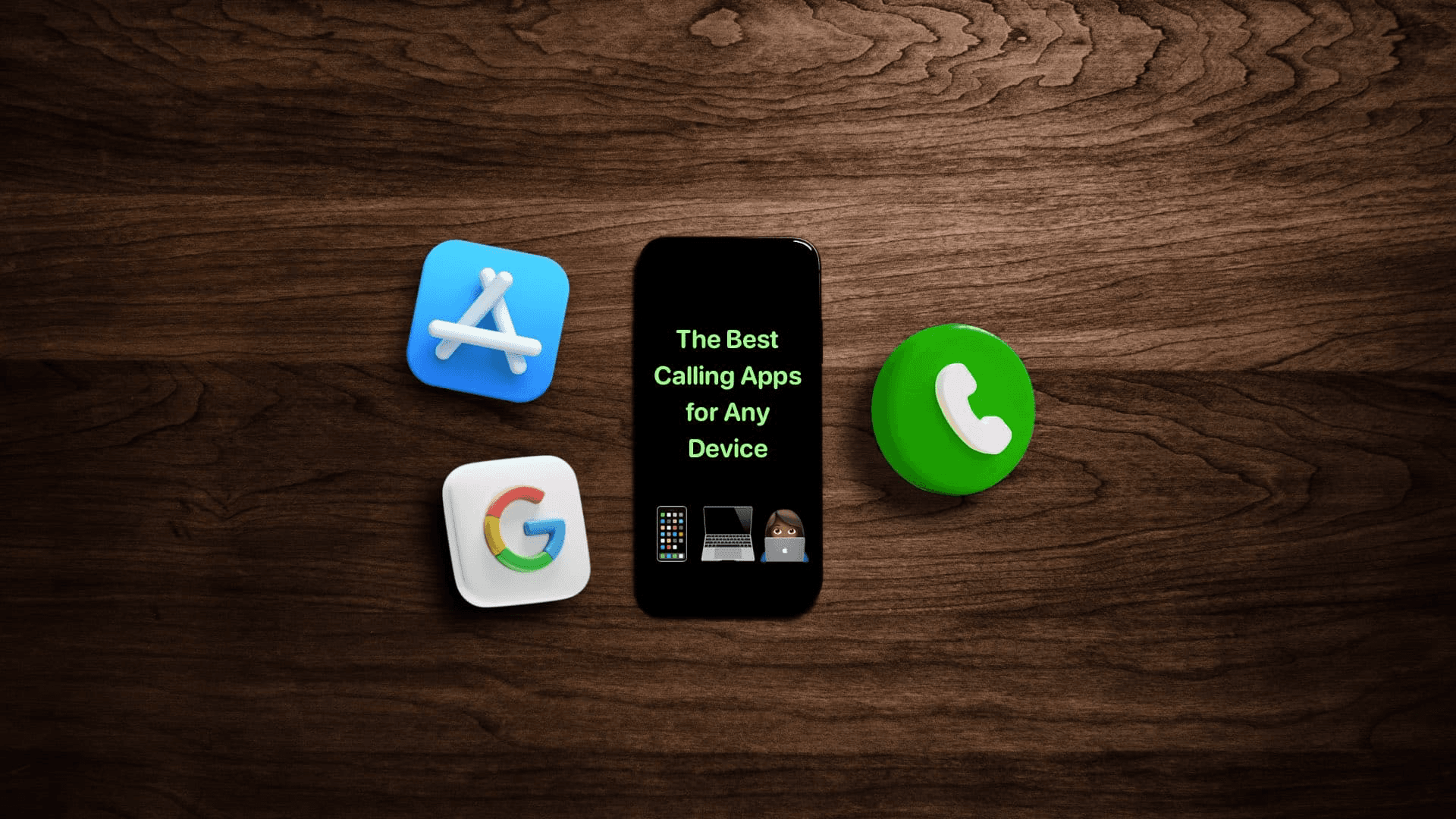
Best Calling Apps For PC, Android, And IOS
4 min read
Margot Howard
Top 10 Calling Apps For PC:
LinkedPhone
Google Voice
Nextiva
CallCentric
RingCentral
Skype
Grasshopper
Globfone
TextNow
WhatsApp
It used to be that you could only make a phone call the old-fashioned way—with a telephone. But with the internet, WiFi, and an array of devices at our disposal, why limit your options?
There are a variety of ways to communicate today that you may not have considered. In fact, you can make free phone calls using calling apps for PC, Android, and iOS devices. With so many possibilities, there’s never been a better time to give it a try.
LinkedPhone
LinkedPhone serves the small business community with local & toll-free business numbers that work with your cell phone, desk phone, & laptop. Add a 2nd phone number to your cell phone with our mobile app. Talk & text with clients on the go. Add team members too. Finally break free from the desk phone. At LinkedPhone, freedom rings! 🔔📱💻☎️
BENEFITS OF CALLING FROM A PC
Internet calling has a lot of advantages over making calls from traditional landlines or even cell phones. Here are a few to consider:
IT’S A GREAT BACKUP PHONE
There are times when you need to make a call, but your phone’s battery is dead, you damaged your device, or the cell signal is weak. That’s when it makes sense to call from your computer.
Not only can you make or receive calls on your computer, but you can also route incoming calls from another device to your PC with VoIP software.
IT KEEPS YOUR BUSINESS AND PERSONAL LIFE SEPARATE
Using a virtual phone number to make and receive business calls from your computer over the internet enables you to protect your privacy. It means you no longer need to share your personal mobile phone number with customers and business associates. This also makes it easier for you to relax in off-hours since it differentiates business and personal calls. No more answering a phone call after hours to find out it is a business call.
IT’S MORE ECONOMICAL
Internet calling can be more cost effective than other calling options, especially if you have a toll-free number or need to make a lot of phone calls.
IT’S MORE FLEXIBLE
Making calls from your PC gives you portability. If you have your computer and internet access, you can make and receive calls from anywhere, so there’s no need to stay in one place.
IT IS MORE FEATURE RICH
Using software on your computer for internet calling offers you more features than a regular mobile device. Instead of only being able to reject, mute, or hold calls on your cell phone, calling from a pc allows you to forward calls, enjoy transcribed voicemails, call notifications to multiple devices, and unlimited SMS messaging. Of course, features vary depending on the calling software.
HOW TO CALL SOMEONE ON A COMPUTER
There are a few options to choose from when you want to make a phone call online. These include VoIP, app to phone, and app to app calling.
VOIP CALLING
To make a phone call online using your computer’s internet connection uses Voice over Internet Protocol (VoIP). This protocol captures your voice and transmits it over the internet to deliver it to your recipient. This is similar to calls between two land or mobile telephones except the transmission is over the internet instead of a carrier network.
VoIP calls can be used to make calls over the internet and traditional phone lines.
APP TO PHONE
These calling apps allow you to make calls to traditional phone numbers. Although the call recipient doesn’t need to be connected to the internet to receive your call, you must have an active internet connection to make the call.
In this case, your call is transmitted over the internet and transferred to a traditional phone network to complete the call.Since app to phone solutions involve a phone network, there may be a cost associated with these calls.
APP TO APP CALLING
Some internet calling apps require the call recipient to not only have an active internet connection, but to also have the same software app as the caller. In this case you’re not calling a traditional phone number, you’re calling within the same application. Calls through these apps are typically free and unlimited.
HOW TO MAKE A PHONE CALL ONLINE
Making phone calls online or via smartphone calling apps is easier than ever these days. Just use the following simple steps:
1. HAVE A RELIABLE INTERNET CONNECTION
A stable internet connection ensures your calls will be clear, making communication easier from your laptop or computer. WiFi is most often used for PC calls, but a mobile hotspot, ethernet connection, or even cellular data can also work.
2. CHECK YOUR SOUND SETTINGS AND EQUIPMENT
Although our PC most likely has a built-in mic and speakers, the sound quality can be improved by using a headset. This can give you clearer audio and offer noise-cancelling for a better sound experience for your call recipient as well. Using a headset also facilitates making calls from your office or a noisy public place like a coffee shop while maintaining privacy and call quality.
3. LAUNCH YOUR CALLING APP
Once you have a good internet connection and you’ve set up your sound equipment and settings, all you need to do is launch your calling app to start a call from your PC. Make sure you’ve downloaded the correct software, such as Zoom, before the time scheduled for your call, so that you’re 100% ready when it’s time to start talking.
WIFI CALLING ON IPHONE OR ANDROID
There are three main ways to place WiFi calls on iPhone or Android devices:
PHONE CARRIER FEATURE
WiFi calling on iPhone or Android historically required an app to complete the call, but carriers have now started offering “WiFi calling” as a feature. All you need to do is activate this feature in your phone’s settings so you can make WiFi phone calls when you’re in an area where your carrier’s signal is too weak to complete the call. The downside to this is that you are using your personal phone number to complete the call.
APP TO PHONE
As described above, app to phone is an option available for mobile devices in addition to PCs so you can call a traditional phone number by initiating the call through the app. You can also receive calls through the app from traditional phone numbers.
APP TO APP
You can also make a free internet call with an iPhone or android device as well as a tablet. App to app calls only work if the call recipient has the same app installed on their device. This internet calling option does not support calls to landlines or other devices that don’t have the specific app installed.
TOP 10 CALLING APPS FOR PC, ANDROID, OR IPHONE
We’ve put together this helpful list of the top 10 calling apps for the different platforms to help you find the best one to meet your needs, along with the top features, pros & cons of each option.

1. LinkedPhone
LinkedPhone’s mission is to empower the small business community to work from anywhere, by providing the tools you need to streamline communications and grow your business. Their mobile app adds a second number to your mobile phone that is uniquely designed for work or business. It’s your work phone in an app.
Professional features in LinkedPhone’s plans include:
Business Phone Number – Choose a local or toll-free virtual phone number, or port your current number.
Unlimited Talk and Text – Text messaging is included at no extra charge.
Mobile App – Use your personal device to manage your business communications anywhere you go.
Voicemail & Transcription – Both audio and text transcriptions are delivered instantly.
Call Menu Options – Give a professional experience and streamline your communications.
Call Queue – Keep calls in a queue, listening to music as you finish up another call.
Client Notes – Team based customer notes CRM, to-do lists, and reminders that instantly update to all your devices.
Pros:
Works with PC, Android, and iOS devices
Pricing is simple, honest, and transparent
Excellent for teams who want to share a single business phone number
No contracts, upselling, or surprises
Easy setup
Excellent support
All business features included in every plan
Cons:
Does not provide traditional business calling infrastructure more suitable for large businesses or enterprises

2. Google Voice
Although this popular app offers a free personal line, Google Voicedoes not offer a free business phone number.
Top features on a basic plan include:
Local Phone Number – Access to one local phone number; Google Voice does not offer toll-free numbers.
Unlimited Texts and Calls
Voicemail Greeting
Call Forwarding
App Integrations – Integrates with other Google Workspace apps such as Gmail, Google Drive, Google Calendar, and Google Meet
Spam Blocker
Pros:
Works on PC, Android, and iOS devices
Call forwarding to your existing phone
Voicemail included
Allows easy access to existing phone contacts
Cons:
An existing phone number is required to call landlines and other phone numbers
Not suitable for teams
Limited call time

3. Nextiva
The Nextiva VoIP app is geared more for larger teams and individuals, or smaller teams must pay higher rates to access additional features like conference calling, auto attendant, SMS, and additional integrations.
Top features included in Nextiva’s basic plan include:
Unlimited Voice and video calling
Voicemail
Unlimited Internet Fax
Local and Toll-Free Numbers
Google and Outlook Integrations
Pros:
Works on PC, Android, and iOS devices
Unlimited calling
Voicemail
Toll-free numbers
Integrations
Cons:
More costly
Lacks many basic features without paying a premium

4. CallCentric
CallCentric no longer offers free business phone lines. But they are an economical option for individuals who only want no-frills internet calling capabilities.
Economy features include:
Caller ID Blocking
Call Forwarding
Voicemail
Unlimited incoming calls
Unlimited in-network calls
Pros:
Basic service can be economical
Voicemail included
Many feature options available
Works on PC, Android, and iOS devices
Cons:
Pricing is complex
May become quite costly to receive all desired features

5. RingCentral
RingCentral is a popular phone service provider whose service can become costly if you want a full range of features.
Features included in RingCentral’s Essentials package are:
Business phone or toll-free numbers
Unlimited calls within the US/Canada for up to 20 users
Enhanced Business SMS
Voicemail-to-text
Team messaging
Document sharing via the RingCentral app
Pros:
Includes voicemail transcription
Unlimited North American calls
SMS
Team communication and document sharing
Simple setup and quick activation
Cons:
Limited number of users allowed on the Essentials plan
Higher rates for features like app integrations, video meetings, and unlimited internet fax

6. Skype
Skype is a video calling service that offers app to phone calls and app to app calls as well as free local phone numbers so you can make and receive calls from anywhere.
Skype features include:
App to app video calling – free to other Skype users if you both have an active internet connection
SMS messaging
Voicemail
Call forwarding
In-app chat with other users
Pros:
Works on PC, Android, and iOS
No phone number needed to make outgoing calls from Skype
Call forwardingLocal phone numbers available
Cons:
Fee for a local phone number
Fee for outgoing calls to landlines and mobile devices
Calls to non-Skype users are an extra charge Lacks other desirable business features

7. Grasshopper
Grasshopper is a full-featured internet calling app focused on small businesses.
Grasshopper plans include the following features:
Mobile and Desktop Apps
SMS messaging
Call Forwarding
Voicemail
Call Transfers
Pros:
All plans include all features
Call forwarding
Voicemail transcription
Business phone number included – Vanity, Local, or Toll-Free
Cons:
Pricey compared to other options

8. GlobFone
Globfone offers browser-based software for internet calling with the ability to make a limited number of free app to phone calls. They do not offer a paid subscription service, phone numbers, or the ability to call from Android or iOS.
Globfone features include:
Video Chat
File Sharing
Texting
App to Phone calling
Pros:
Completely free
No sign up needed
Free international calls
Cons:
Only works on a PC
Outgoing calls only
Limited number of calls allowed
Limited features
Lacks most desirable business features
No voicemail
No phone numbers
No call forwarding
In app advertisements – You are required to turn off your ad blocker

9. TextNow
TextNow is a mobile app that facilitates app to phone calls for free within the US and Canada. The app includes advertisements that can be eliminated with a paid subscription.
TextNow features include:
Free phone number or port your existing number
SMS messaging
Group SMS messaging
Voicemail
Conference calls – in-app group calling
Pros:
Works on Android and iOS
No phone number required – a number is assigned when you sign up
Unlimited domestic phone calls – in the US and Canada
Voicemail included
Unlimited SMS messaging
Cons:
Calling not available on PC
TextNow assigned phone numbers are deactivated after a period of user inactivity
10. WhatsApp
WhatsApp is an instant messaging platform that enables video and audio calling.
WhatsApp features include:
Text messaging to individual users or groups
Audio calling
Video calling
File sharing
Pros:
Call any user regardless of their location
Syncs with existing mobile contacts
Works on PC, Android, and iOS
Cons:
Existing phone number required at sign up
Does not support calls to non-users or landline phones
LINKEDPHONE BEATS OTHER CALLING APPS FOR PC HANDS DOWN
We think you’ll agree that LinkedPhone is the best calling app available for PC. LinkedPhone has all the features you need, service you can trust, and a quality virtual phone system that’s easy to manage and navigate at a budget-friendly cost.
Get started with the best calling app for PC, Android, and iOS, and sign up for a 7-day free trial of LinkedPhone and start using internet calling on all your devices today!