" height="20.52938091278076px" id="IQRjldyGV" transform="translate(2 2)" width="20px"/></svg>)
Before you start
You’ll need:
Already have an account?
At the bottom of the welcome screen, select Renew or Sign In instead.
LinkedPhone on any supported device: the web, a mobile phone, a desktop computer, or an iPad
Your personal mobile number, which we use to verify your phone
A way to pay: an App Store account or a Google Play Store account. If you sign up on the web, keep your credit card information handy. We won’t charge you during the 7-day free trial.
Moving an existing business number? Keep a recent bill from your current phone carrier handy for later. You don’t need it to sign up.
Get LinkedPhone on your phone



Note:
LinkedPhone works on the web, mobile phones, desktop computers, and iPads. The steps and screens are the same on every device.
Choose the business number you’ll use with your LinkedPhone account. It takes about 2 minutes.
How to get your business number
1
Open LinkedPhone on your device.
Result:
The LinkedPhone welcome screen opens.

2
Select Get Started Free.
Result:
A screen opens that asks whether you already have a business number or want a new one.

3
Choose the option that applies to you.
a
I already have a business number
b
I don’t have a business number
If you already have a business number:
1
Select Already have a business number?.
Result:
A screen opens that explains how to try LinkedPhone with a temporary number and port your existing number later.

2
Select Select a Temporary Number.
Result:
The Select a Business Number screen opens.

3
In the search box, enter an area code, city, state, or province.
4
Select the number you want.

5
Select Get This Number.
You’ll use this number temporarily until your existing number is ported to LinkedPhone. We’ll email you instructions for porting your number, which usually takes 5 to 15 business days (about two weeks). After porting is complete, we stop billing you for the temporary number.
We’ll keep you updated by email.
We email you at each stage of porting: when your port order is submitted, when your porting date is confirmed, when porting is complete, and if there are any issues along the way.
By continuing, you agree to LinkedPhone’s Terms of Service, Reasonable Use Policy, and Privacy Policy.
You’ve reserved your business number.
Select how many people are on your team. It takes about 1 minute.
Before you start
You’ll need:
A business number selected for your LinkedPhone account
The number of people on your team, including you
How to choose your team size
1
After you select your business number, the Choose Your Team Size screen opens.

2
To add a team member, select the plus sign (+). To remove a team member, select the minus sign (−).
Result:
The team size changes, and the monthly price below it updates.
How pricing works:
Your plan includes one user: you, the account owner. Each additional team member costs $5 per month.
Team size
Local number*
Toll-free number*
1 (just you)
$19.99 per month
$29.99 per month
2
$24.99 per month
$34.99 per month
3
$29.99 per month
$39.99 per month
Each additional member
+$5 per month
+$5 per month
*Prices apply after your 7-day free trial.
Note:
You can have up to 10 team members, including you (the admin). To add more than 10, contact LinkedPhone support. You can change your team size at any time, even after you sign up.
3
Select Confirm Team Size.
You’ve chosen your team size.
Confirm that your mobile number works with LinkedPhone by entering a one-time code. Use your own mobile number, not the business number you chose. It takes about 1 minute.
Before you start
You’ll need:
Your team size confirmed for your LinkedPhone account
Your phone nearby so you can receive the text message with your code
How to verify your mobile number
1
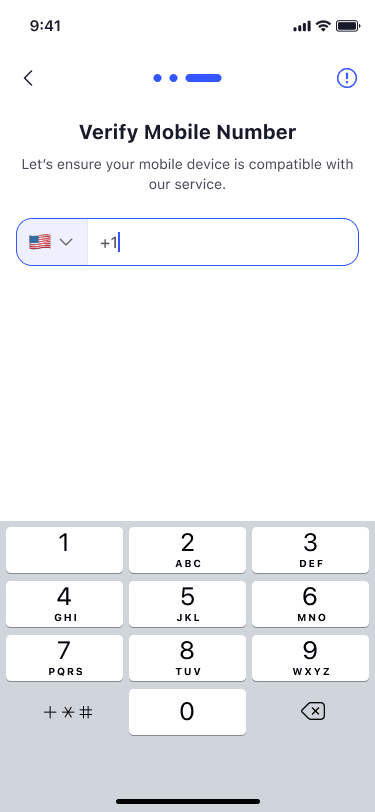
After you confirm your team size, the Verify Mobile Number screen opens.
2
Enter your mobile number.
Note:
This becomes the admin’s mobile number for your LinkedPhone account. You can’t change it yourself later. To change it, contact LinkedPhone support.

3
Select Send Code.
Result:
We send a 5-digit code to your phone in a text message.

Note:
If you don’t receive a code, wait for the timer to finish, and then select Resend code.
4
Enter the 5-digit code.

You’ve verified your mobile number.
Check your plan details and start your 7-day free trial. It takes about 1 minute.
Before you start
You’ll need:
Your mobile number verified for your LinkedPhone account
A way to pay: an App Store account or a Google Play Store account. If you sign up on the web, keep your credit card information handy. We won’t charge you during the 7-day free trial.
How to review your plan
1
After you verify your number, the Review Your Plan screen opens.
To change your business number or team size, select the pencil icon to the right of it.

2
Check your business number, team size, verified mobile number, and plan total.
3
Select Start 7-day Free Trial.
Result:
The Confirm Subscription dialog opens.
Note:
Your free trial lasts 7 days. If you don’t cancel your subscription at least 24 hours before the trial ends, we charge you for the next month.

4
Select Confirm.
Result:
The Well done! screen opens and shows that your business number is live.

You’ve confirmed your LinkedPhone subscription.
Give LinkedPhone access to notifications, your microphone, and your contacts so calls and messages work smoothly. It takes about 1 minute.
Before you start
You’ll need:
Your LinkedPhone subscription confirmed
How to allow permissions
1
After you confirm your subscription, the Essential Permissions for a Seamless Experience screen opens.

LinkedPhone needs these permissions to work correctly:
Notifications
Get alerts for business calls, messages, and voicemail.
Microphone
Speak to customers on your business line.
Contacts
See familiar names instead of just numbers for business calls, texts, voicemail, and missed calls.
On the web, LinkedPhone asks only for notifications and microphone access.
2
Review the permissions, and then select Next.
You’ve allowed the permissions that LinkedPhone needs.
Add your name, email, and business details to your LinkedPhone account. It takes about 2 minutes.
Before you start
You’ll need:
Permissions allowed for LinkedPhone
The email address you want to use for your account. Choose carefully, because you won’t be able to change the admin’s email address or mobile number yourself later.
Your business name and the type of business you run
How to set up your admin profile
1
After you allow permissions, the Admin Profile screen opens.

2
On the Admin Profile screen, enter the following information:
First Name
Required
Last Name
Optional
Required
Business Name
Required
Business Type
Required
For Business Type, select the option that best describes your business. To find an option quickly, enter a word in the search box. If none fits, select Other.
All business types (23)
Accounting, Finance & Insurance
Beauty Services
Body & Fitness
Construction & Carpentry
Education
Gardening & Landscaping
Healthcare
Home Services (cleaning, repairs)
Hospitality
Legal Services
Manufacturing
Marketing, Media & Advertising
Non-Profit
Pet Services
Photography & Videography
Real Estate
Religious & Spiritual Services
Self-Improvement, Therapy, Coaching
Staffing Services
Technology
Transportation Services
Other
Note:
After you set up your admin profile, you can’t change the admin’s email address or mobile number yourself. To change either one, contact LinkedPhone support.

3
Select Save.
You’ve set up your admin profile.
Add the people on your team to your LinkedPhone account. It takes about 1 minute per team member.
Before you start
You’ll need:
Your admin profile saved in your LinkedPhone account
Each team member’s name, phone number, and email, or their details saved in your phone’s contacts
Note:
A LinkedPhone account can have up to 10 team members, including you (the admin). To add more than 10, contact LinkedPhone support.
How to invite team members
1
After you set up your admin profile, the Invite Team Members screen opens.

2
Select Add Member.
Result:
The Add Team Member dialog opens.

3
Add the team member’s details in one of two ways:
a
Select Import From Contacts, and then choose the team member from your contacts
Importing from contacts isn’t available on desktop. On desktop, enter the team member’s details manually (option b).
OR
b
In the Add Team Member dialog, enter the following information:
First Name
Required
Last Name
Optional
Phone Number
Required
Required

4
Select Save.
Result:
The team member is added, and the Invite Team Members screen opens again.
5
To add more team members, repeat steps 2 through 4.
6
After you add all your team members, select All Set For Now.

You’ve added your team members to your LinkedPhone account.
Create a password so you can sign in to LinkedPhone with your email or phone number and password. It takes about 2 minutes.
Note:
To set your password, sign in to your LinkedPhone account. If you skipped inviting team members, you can start here.
Before you start
You’ll need:
Your LinkedPhone account set up, with your admin profile saved
The phone linked to your LinkedPhone account nearby, so you can receive a verification code
How to set your password
1
Select Sign In With Password.

2
In the New Password box, enter a password. Then enter it again in the Confirm New Password box.

3
Select Update Password.
Result:
We send a verification code to the phone number linked to your LinkedPhone account.

4
Enter the verification code.
You’ve set the password for your LinkedPhone account.
NEXT
Inbox
Contacts
Calls
Tickets
Settings
Auto Attendant